

6 CarPlay Widgets That Are Surprisingly Useful
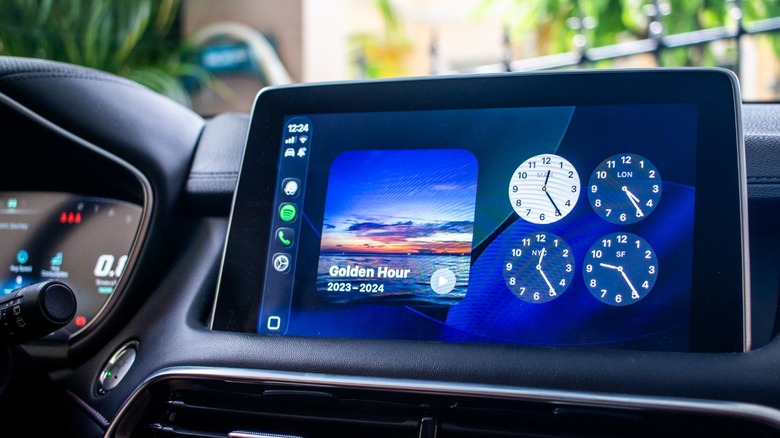
Apple introduced CarPlay Widgets in iOS 26, allowing drivers to quickly see their apps on their infotainment screens. It's easy to add widgets to your car's display through your iPhone's settings and there are a few widgets you should install ASAP to make the most out of the feature. However, a few users complain that it isn't as useful as they thought, especially with the limited number of apps that natively run on your car screen.
Because of this, I scoured the apps on my iPhone and browsed the App Store to see if we're missing any surprisingly useful widgets. The current biggest downside with this feature is that you cannot use it alongside navigation and music. If you already know where you're going and don't need a map, some of these widgets are pretty helpful, whether you're just about to leave for the office, enroute to your destination, or arriving home after a long day at work.
Amazon
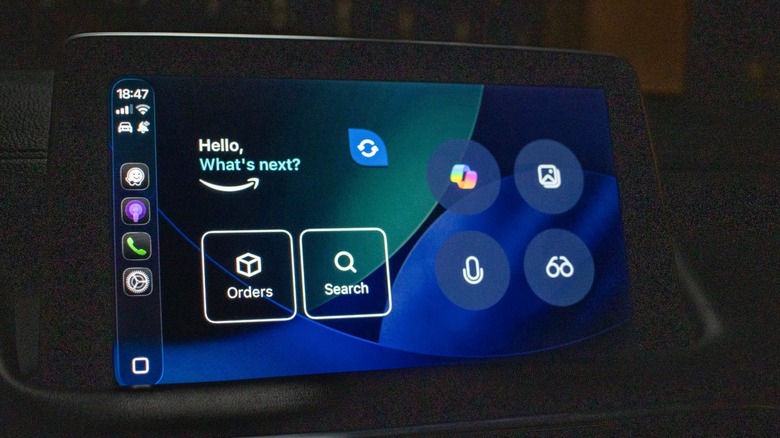
You most likely don't think of shopping online when you're in your car, but it would still be nice to get a reminder of any incoming Amazon packages before you leave the house. Even if you missed the delivery notification on your phone, the Amazon CarPlay widget will let you know the item you've been waiting for is finally arriving. This will let you send a message to people left in your home that you're expecting a parcel, helping prevent surprises. Alternatively, it can also remind you to pass by the Amazon Locker or Counter you nominated if you're traveling and use that service.
The Amazon widget also lets you browse for deals while you're in your car. But you really shouldn't do that, especially if you're on the road, as it constitutes distracted driving and could get you a ticket. Besides, it's much easier to shop online directly on your phone if you're parked and waiting for someone.
Copilot
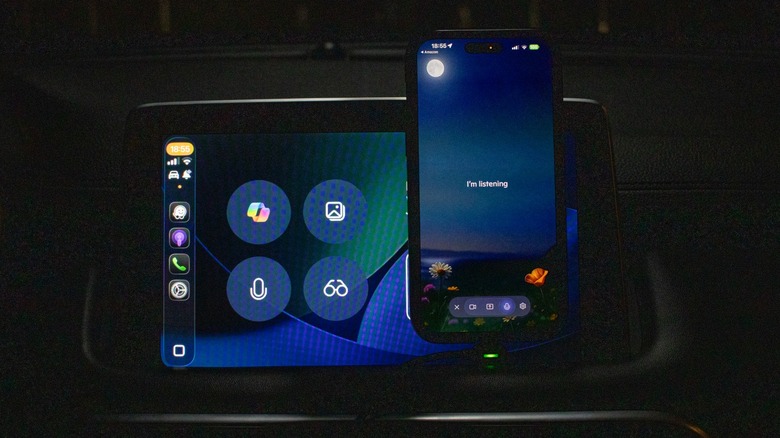
Siri has gotten better with the iOS 26 update, making it one of the CarPlay features you should use this year. However, we don't expect Siri to gain Apple Intelligence features until later this year. So, if you want to talk to an AI while you're driving, one alternative is Microsoft's Copilot, which you can add as a CarPlay Widget. Note that you need to have your iPhone unlocked to use it, and that the Copilot, photo, and screenshot functions require your smartphone. If you just want to talk to it and ask it questions, tap the microphone icon on the screen (with your phone unlocked) to start a conversation.
This is great if you're bored and alone while stuck in traffic, or if you want to confirm a few things while you're talking with your passenger. What I like best about Copilot, though, is that it's quite conversational, and you can interrupt it anytime. Aside from solving boredom, you can also use this if you're sleepy or feel that you're suffering from highway hypnosis but need to drive a few more miles to find a safe place to stop and rest, as it can keep you mentally stimulated as you roll along (but please, don't drive sleepy).
Dynamic Lyrics
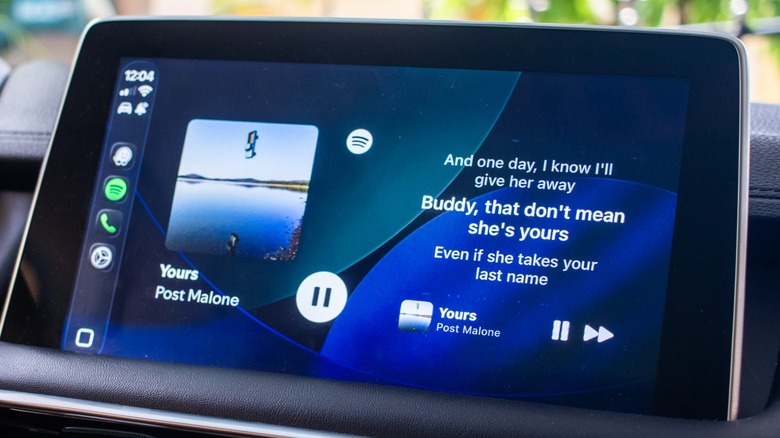
This is a great feature if you're on a road trip with friends and want to do some Carpool Karaoke to pass the time. Dynamic Lyrics is an app that lets you display the lyrics of the currently playing track on Apple Music or Spotify on its CarPlay widget if you pay for Premium. You can try it for a few days for free, and if you like the feature, it only costs $5 for an annual subscription or $10 for a lifetime license.
It's also quite easy to set up and use — just add the widget to the CarPlay settings on your iPhone and connect your Spotify account to the app. Once you've done that, it should automatically display the lyrics of the current song on your car's screen, making it perfect for letting your passengers sing along to your favorite tunes. You can even set up a Spotify Jam session, allowing your friends to add their favorite songs to the playlist, turning a boring long drive into a fun karaoke trip as you make your way to your destination.
Podcasts
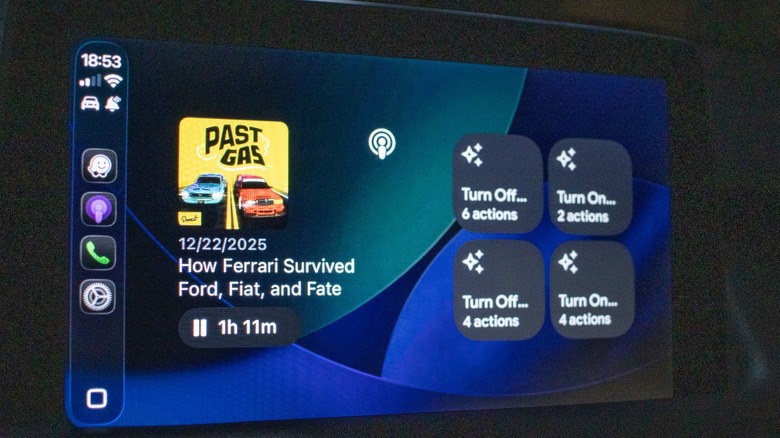
Apple Podcasts is one of the best podcast apps you can get on Apple CarPlay, and even though you can open it as an app on your car's infotainment screen, it also has a CarPlay Widget that gives you quick access to the latest shows and episodes from your favorite channel. This shortcut lets you access your podcasts directly from the widgets view, which makes it quite convenient for setting up before your drive, especially if you frequently use the widgets view to quickly see other apps as well.
The Podcasts widget also gives you three different options — there's the Up Next view, which lets you continue with what you were listening to or see what's next after, the Library view, which shows your saved episodes and takes you to your podcast library when you tap it, and the Shows views, which focuses on the episodes from a specific show that you follow. While some may argue that using the CarPlay app directly is more convenient, this widget is still pretty nice for those who prefer a simpler way to navigate CarPlay.
Your favorite smart home app
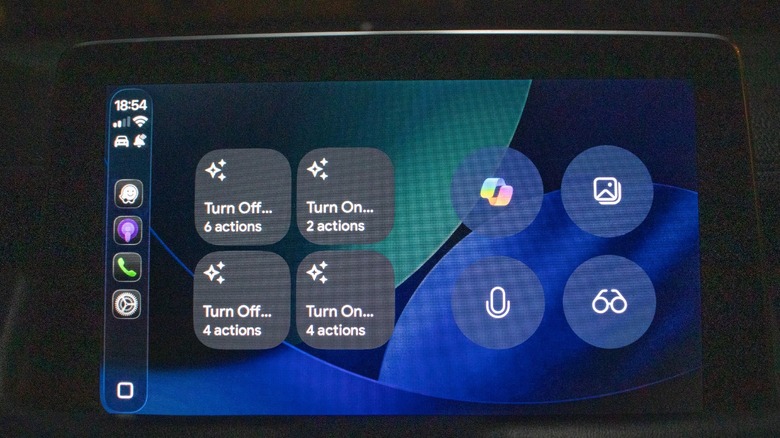
One of the most useful CarPlay widgets I've found is one from Apple Home or Google Home. That's because it displays some of my favorite shortcuts right on the widgets view, allowing me to control my smart gadgets without needing to take my phone out or rummage through my car's screen. So, if you have a smart garage door, you can just set it up on your widgets view and press the proper shortcut to open it while waiting on your driveway — no need to get out in the rain or snow just to open it. I also use it to turn on the air conditioning units in my bedroom as soon as I'm parked in my garage, so I can cool down immediately when I get upstairs. You can also add a shortcut to turn off all your smart gadgets from the widget screen, helping you save money by switching off unnecessary devices when you leave the house.
This widget requires some setting up, especially if you have a new smart home. Still, it's worth the hassle, especially for the convenience of controlling your smart devices right from your car's screen.