

How To Easily Set Up Automatic Live Sports Scores On Android
In 2022, Apple introduced a new feature called Live Activities with the idea to provide live sports scores and real-time updates to users, though the system works for music, video, and food delivery (among other tasks), as well. Once enabled, Live Activities appear on the lock screen and as a pill around the Dynamic Island. If that sounds appealing, you'll be surprised to know that Android has offered automatic live sports updates since 2018, years before Apple attempted it. And as of 2025, Android brands such as OnePlus have actually gone a step further and implemented it around the selfie camera with the Android 16-based OxygenOS 16 update for a variety of utilities.
Unlike iOS, you don't have to dig within the Settings app either. On an Android phone, all you need is the Google app, and you're good to go. And here's the best part. You don't need an uber-powerful device to enable automatic live sports scores on an Android phone, and there is no restriction on the kind of sports you can follow in real time. On Android, this functionality is enabled under the name "Pin Live Score," and all it requires is a one-time access that allows the floating score bubble to appear on the screen.
The Google app also shows cool celebration animations for events, such as player scoring or a wicket breakthrough. Before we head to the steps, just make sure that you are running the latest version of the Google app on your Android phone, and while at it, make sure that you also have the latest OS version and security patch installed. These steps are not mandatory, but being on the most recent version can unlock a few extra perks and offer a smoother experience.
What do I need to do?
With the meager requirements out of the way, here are the steps you need to follow in order to set up automatic live sports scores on an Android phone:
- Open the Google app (colorful G icon) on your phone.
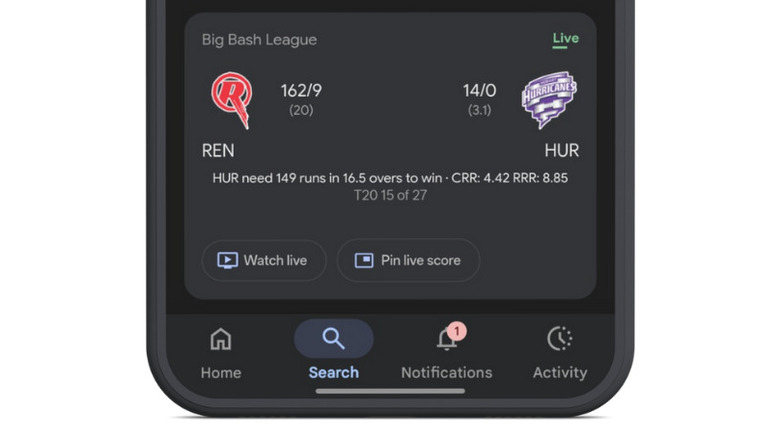
- Type the match or sports series you want to follow in the Search box at the top. For example, you can try "MLB scores," "Cricket scores," or the name of a sports league, like "Big Bash."
- Once you hit search, you will see a list of matches, with ongoing matches appearing at the top of the page. On each match card, you will see a Pin Live Score button. Tap on it.
- As soon as you tap on the pin button, the match score will automatically be added as a bubble alongside the left or right edge of the screen. With a simple flick or drag, you can position it anywhere alongside the vertical edges of the screen.

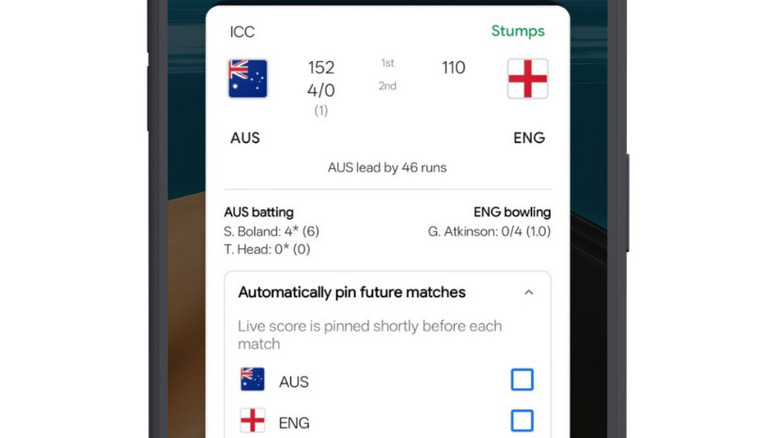
Nadeem Sarwar/SlashGear - When you tap on this bubble, it will expand into a large floating card that shows more detailed stats of the match, such as the players currently on the wicket, the leading or trailing score, and more.
- Below the score, you will see an option that says "Automatically pin future matches." Once you tap on it, it will open a drop-down menu where you can select the team(s) whose live matches you automatically want to track as live updates.
- At the bottom of the live scorecard, you will find the "Stats, news and more" option. When you tap on it, it will open the full match card page in the Google app, where you can see the detailed scorecard, live commentary, stats tables, and live viewing options. Do keep in mind that the match won't be played live in the Google app. Instead, it will redirect you to the sports streaming app where you can watch it.