

Don't Waste Money On Dual Monitors: Use This Instead
We may receive a commission on purchases made from links.
Many productivity experts and even some gaming enthusiasts recommend getting two monitors for your workstation. The extra desktop real estate is a game-changer, allowing you to run several apps side by side without turning them into comically small windows. However, plunking two displays on your desk has drawbacks — they will double the space that your computer would take up, meaning you'd have less space for other things on your desk. You'd also need two extra video output ports on your desktop or laptop, as you cannot plug multiple screens into a single HDMI port and use them independently, even if you use a splitter. You must also consider that no two monitors are exactly the same, so you might see subtle color differences between your different monitors (unless you have them professionally calibrated), especially if you use different brands or models.
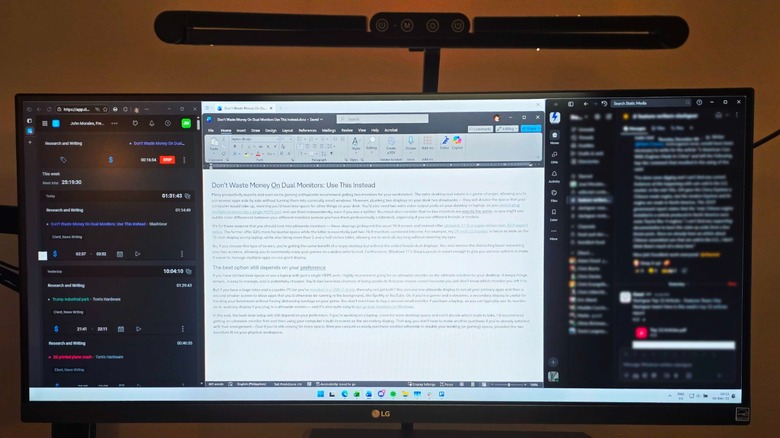
It's for these reasons that you should look into ultrawide monitors — these displays go beyond the usual 16:9 screen and instead offer ultrawide 21:9 or super-widescreen 32:9 aspect ratios. The former offer 33% more horizontal space while the latter is essentially just two 16:9 monitors combined into one. For example, my 29-inch LG monitor is twice as wide as the 15-inch display on my laptop, while also being more than 3 and a half inches taller, allowing me to work all day long without straining my eyes.
So, if you choose this type of screen, you're getting the same benefit of a larger desktop but without the added hassle dual displays. You also remove the distracting bezel separating your two screens, allowing you to seamlessly enjoy your games on a widescreen format. Furthermore, Windows 11's Snap Layouts feature is smart enough to give you various options to make it easier to manage multiple apps on one giant display.
How to make the most of an ultrawide display

Snapping is a convenient tool for arranging apps on an ultrawide display, but the default options on Windows and macOS are sometimes too limited to let you make the most of it. If you use the former, you can install PowerToys, one of many useful but often forgotten Windows features, and use PowerToys' built-in FancyZones utility to create custom desktop layouts. You can also do the same with Rectangle if you have a Mac, which gives you more window layout options than the default offered by Apple's desktop operating system.
I've found that, for streaming, FancyZones comes in particularly handy as you can create a 16:9 section on your ultrawide monitor. If you put your game on borderless window mode and then place it in a zone set to the ideal aspect ratio, you can ensure that your stream looks good on most platforms. You can then place your streaming app beside it, meaning you don't need to use an overlay, switch windows, or look at another device just to see your stream.
Ultrawide monitors offer the best of both worlds. They give you larger desktop space so you can have more apps and windows open simultaneously without taking up the space and ports that multiple screens demand. They even help you stay focused, as you don't have to keep on turning your head just to look at your secondary monitor, potentially saving you from a lot of neck strain. More importantly, a single 34-inch ultrawide monitor, like this Samsung 34-inch display, can be cheaper than two 24-inch monitors (like this 24-inch Samsung Odyssey G3), meaning you don't have to spend as much just to be more efficient with your work and play.